
Transparent PCIe Hot add support
Dolphin eXpressWare enables customers to utilize PCI Express hot add
Dolphin eXpressWare adds PCIe hot add support with Linux systems. Cabled PCIe expansion systems and IO devices can dynamically be added, hot swapped or removed from the system without the need to reboot the host.
SmartIO Dynamic Device add and remove
PCIe NTB technology enables software based resource management and enumeration of standard PCIe devices. The process of adding or removing devices can automatic or managed through some basic command line utilities.
The main difference from the traditional setup is that the PCIe host uplink card needs to be replaced with one of Dolphins PCIe NTB cards. The solution works with directly attached PCIe devices as well as PCIe devices installed into PCI Express expansion systems.
The solution does not require any special BIOS version. Hot adding many devices or devices that requires a large PCIe address space may require the BIOS to support 64bit encoding and large PCIe BARs.
Performance
The SmartIO software does not add any overhead to the standard IO performance.
Availability
The flexible device management functionality is currently available with Linux and the MXH930, MXH940 and MXH950, MXH830, PXH820/PXH824, PXH830 and PXH840 cards using eXpressWare 5.19.2 or newer. Windows support is planned and will be available with the MXH930, MXH940 and MXH950 cards.
To use the SmartIO Hot Add with Linux, please install eXpressWare software using the --enable-smartio option. More information on SmartIO can be found in the eXpressWare installation and reference manual.
Supported Configurations
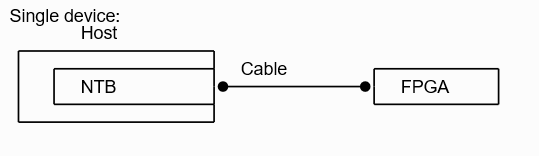
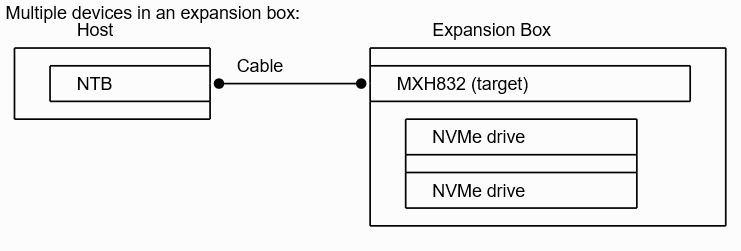
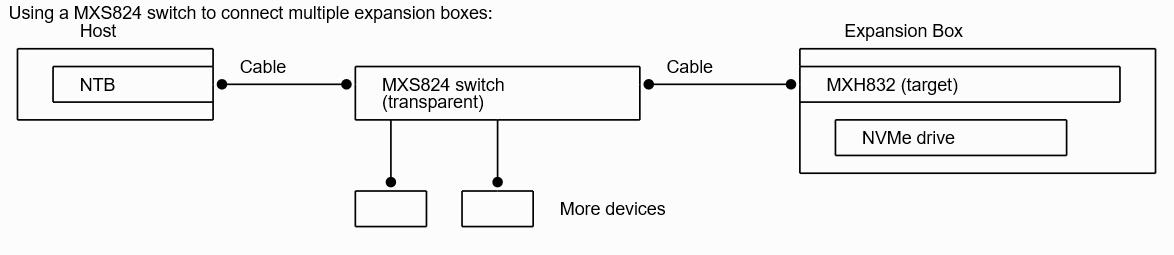
The figures below shows some of the supported configurations. The main requirement is to have a Dolphin NTB enabled PCIe card in the host running Linux. Please contact Dolphin for details and requirements if you are connecting the Dolphin NTB card to a non Dolphin target (e.g. an FPGA or expansion box without a Dolphin card installed).
 .
.
How it works
Automatic mode
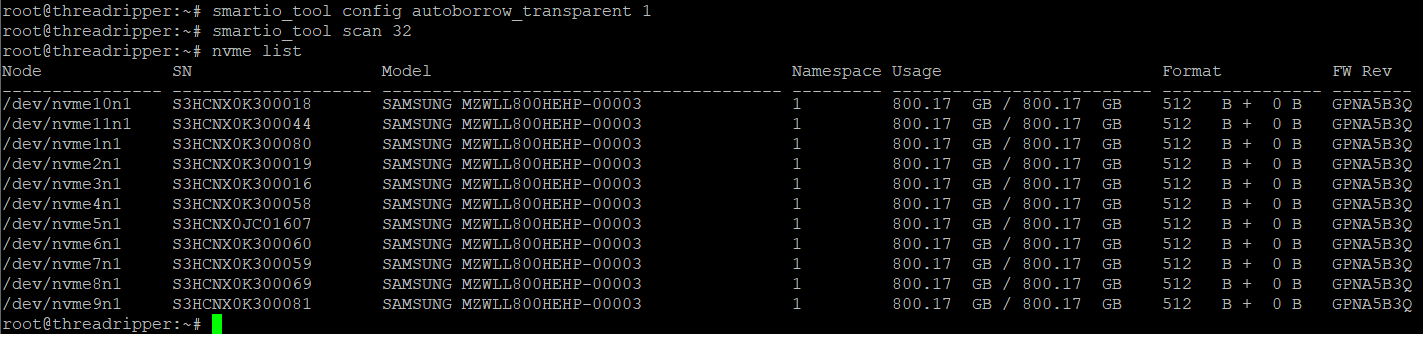
The Hot Add functionality is easy to use. If Autoborrow mode is enabled, all devices found after a scan operation will automatically be added to the system and behave as if they was present during boot. The typical commands to set up Autoborrow and scan for devices can be seen in the screenshot below; Every time a device is attached, you only need to redo the scan operations.
Manual mode
The Hot Add functionality can be used in a selective way if you only want to attach selected devices.
1. Scan for the devices

2. Attache the selected device to the Linux device tree by specifying the Fabric Device Id found using the smartio_tool list command.

3. List the local NVMe drives.

4. Gracefully detach the device from the system by using the smartio_tool return command. Use the same Fabric Device Id as used with the borrow command.